How to Stabilize Phone Video: OIS, EIS, Settings and Gimbal
Why phone video shakes and how to fix it: OIS vs EIS explained, the settings to turn on, 9 ways to shoot steadier without gear, fixing a shaky clip after shooting, and when a gimbal helps.
In this guide
Video · 0:38
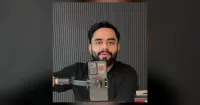
JIKRA Q08 Mini Gimbal: Handheld vs Gimbal Test and How to Switch It On
A 37-second video of the JIKRA Q08 mini gimbal, a 1-axis phone gimbal that also works as a selfie stick and a tripod. It opens with the same walk filmed twice, once with the phone held in hand and once on the Q08, side by side so you can compare the shake.
- 0:00 Handheld vs gimbal: the same walk side by side
- 0:05 The JIKRA Q08 gimbal and its stabilisation
- 0:12 Bluetooth remote for photos and videos
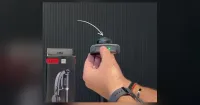
- 0:18 How to switch it on: press and hold the button
- 0:27 Who it is for
- 0:35 Price and where to order
By the Jikra team. JIKRA sells some of the tripods, mounts and the gimbal linked in this guide. AI helped us draft it; the explanations of OIS and EIS follow the sources listed at the end, and the photos are frames from our own Q08 reel.
Quick answer: turn on your phone's video stabilisation, shoot in good light, hold the phone with both hands close to your body, and move slowly. When you walk, step heel to toe with your knees slightly bent. If your clips still tilt and wobble because you film while moving, a gimbal keeps the picture level. To rescue a clip you have already shot, use a stabilise tool in an editor, which steadies it by cropping in.
Why phone videos shake
- Hand tremor: tiny, fast movements of your fingers and wrist. Worst one-handed and with the arm stretched out.
- Footsteps: each step lifts and drops the phone, which shows as bounce.
- Tilting: the phone leans as your hand turns, so the horizon slopes.
- Fast turns: quick pans break into jerky steps on screen.
- Low light: the phone uses a slower shutter indoors at night, so each frame is smeared. That blur is inside the frame, and no stabiliser can remove it.
- Zoom: at 2x or 5x every small movement is magnified by the same amount.
- "Jelly" wobble: phone sensors read the picture line by line, so fast vibration (a car, a bike) makes straight lines bend.
OIS vs EIS: what your phone already does
Phones steady video in two ways, and most recent phones use both together.
| OIS (optical) | EIS (electronic) | |
|---|---|---|
| How it works | A small motor moves the lens or the sensor to cancel shake as the light comes in | Software compares frames and shifts each one to cancel shake, using a slightly cropped picture |
| Best at | Small, fast jitter; low light and zoom, where shake is magnified | Bigger movements while walking; works on any lens |
| Downside | Only a tiny range of movement; adds cost and size, so not every lens has it | Crops the frame a little; can show warping at the edges with heavy movement |
| How to tell | Listed as OIS on the phone's spec sheet, usually for the main camera | The "video stabilization" setting, plus modes such as Super Steady or Action mode |
Neither can keep the whole picture level while your hand tilts it, because they can only move a tiny part or crop a little. That is the gap a gimbal fills: it moves the whole phone. More in what is a gimbal and how it works.
Phone settings for stable video
- Android: open the camera app's settings and turn on Video stabilization (the name varies by brand). Samsung phones also have a Super Steady mode for walking and running shots.
- iPhone: video is stabilised automatically. iPhone 14 and later also have Action mode for shots on the move.
- Resolution and frame rate: on some phones, stabilisation is weaker or switched off at the highest setting, such as 4K at 60 fps. If those clips shake, try 1080p at 60 fps or 4K at 30 fps.
- 60 fps: looks smoother in motion than 30 fps, but needs good light. Indoors at night, 30 fps is often cleaner.
- Ultra-wide (0.5x) lens: hides shake best because each movement is a smaller part of the frame, but its picture is usually weaker in dim light.
- Avoid zoom while moving: walk closer instead.
- Lock focus and exposure: tap and hold on the screen before recording so the picture doesn't pulse as you move.
9 ways to shoot steadier without any gear
- Use two hands and tuck your elbows into your sides.
- Hold the phone closer to your chest; a stretched arm shakes more.
- Turn from the hips, not the wrist, for pans.
- Walk heel to toe with knees slightly bent, like walking on a quiet floor.
- Lean on something: a wall, a railing or a table edge.
- Breathe out slowly during short, important shots.
- Move half as fast as feels natural; on screen it looks normal.
- Shoot in good light so each frame is sharp. A ring light helps indoors.
- Record extra seconds at the start and end so you can trim the shaky bits.
Gear that helps, and when
| Gear | Steadies | Best for | At Jikra |
|---|---|---|---|
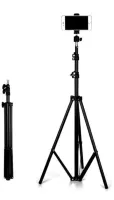
| Tripod stand | Everything, but the phone can't move | Cooking, study, makeup, classes, video calls | 7 ft tripod stand, ₹499 |
| Selfie stick tripod | Holds the phone; no motor | Selfies, group shots, travel photos | SR-1S, ₹258 |
| Flexible mini tripod | Fixed shots on railings, tables, branches | Timelapses, outdoor fixed shots | Gorilla tripod, ₹375 |
| Chest mount | Moves with your body; hands free | Point-of-view cooking, DIY, walks | Chest mount, ₹348 |
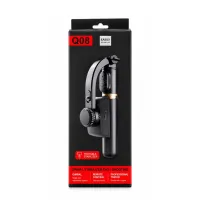
| 1-axis gimbal | Tilt and small shake while moving | Walking vlogs, travel, events, reels | Q08 mini gimbal, ₹1,399 |
| 3-axis gimbal | Tilt, nodding and turning | Running, sports, smooth pans | Not stocked |
Prices at the time of writing, 17 November 2026.

How to stabilize video after shooting
- Google Photos on Android: open the video, tap Edit and use Stabilize.
- Desktop editors: most full video editors, such as DaVinci Resolve, have a stabiliser for clips.
- Expect a crop: stabilising after the fact works by zooming in slightly and shifting each frame, so you lose the edges and a little sharpness. Leave room around your subject when you shoot.
- It can't fix blur: if frames are smeared from low light, stabilising makes the shake stop but the blur stays.
When a gimbal is worth buying
If you follow the tips above and your walking clips still lean and wobble, the problem is tilt, and that is what even a 1-axis gimbal fixes. If you mostly film from one spot, spend on a tripod and light instead. Our handheld vs gimbal comparison and gimbal price guide help you decide.
Frequently asked questions
OIS or EIS: which is better?
Neither alone; they do different jobs. OIS handles small jitter without losing any of the picture, and EIS handles larger movement by cropping. Phones that use both give the steadiest video.
Does 60 fps reduce shake?
It makes movement look smoother, but it doesn't remove shake. It also needs more light, so use it outdoors or in a well-lit room.
Why does my video look wobbly, like jelly?
Fast vibration, from a vehicle or a loose mount, bends the picture because the sensor reads it line by line. Hold the phone off the vibrating surface or use a softer grip.
Can a gimbal fix blurry video?
No. Blur from low light is inside each frame. Add light, or shoot near a window.
Is phone stabilisation enough for reels?
For reels shot from one spot or with slow movement, usually yes. For walk-and-talk reels, a gimbal makes a visible difference to tilt.
Sources
- Android Authority, "Optical image stabilization explained": androidauthority.com
- Guiding Tech, "EIS vs OIS stabilization": guidingtech.com
More guides
Products in this guide
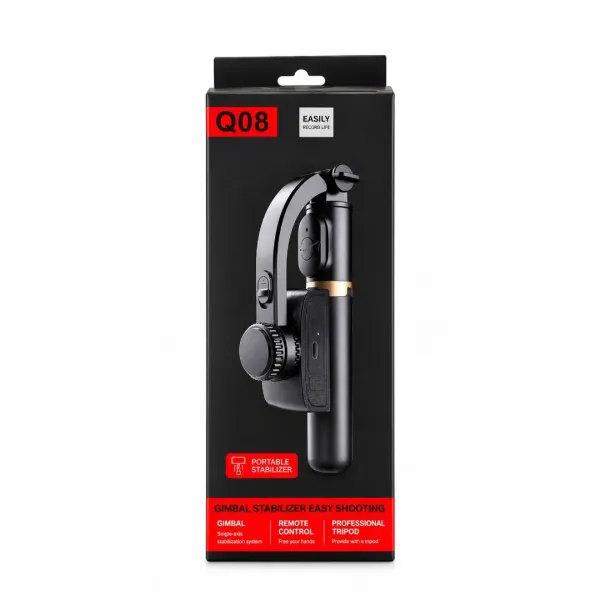
Q08 Mini Gimbal Anti-Shake Stabilizer – 1-Axis Handheld Smartphone Gimbal with Extendable Selfie Stick, Built-in Tripod & Portable Phone Holder for Smooth Videos and Vlogging
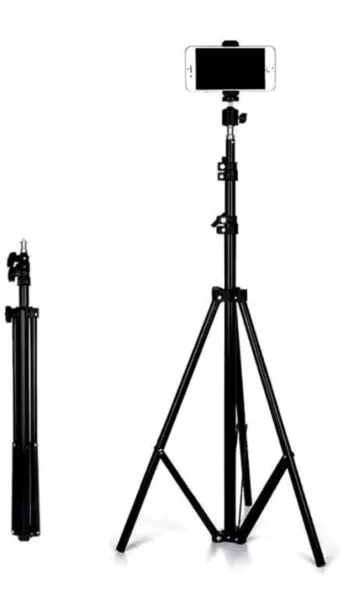
JIKRA Tripod Stand for Mobile & Video Camera – 213 cm (7 ft) Tall, Adjustable
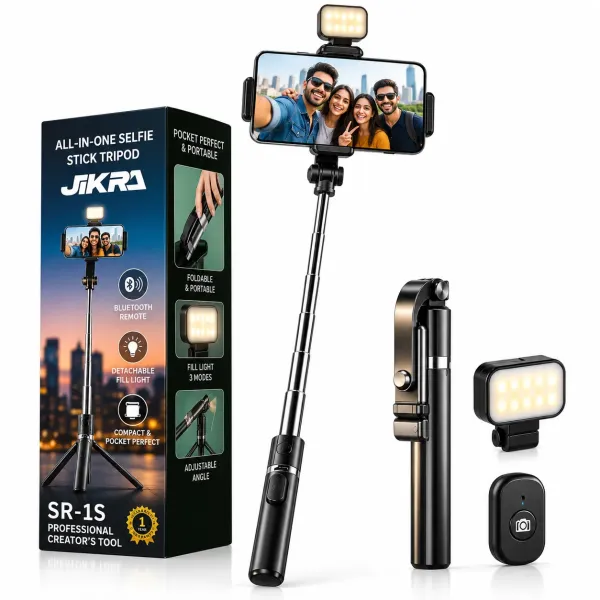
JIKRA SR-1S 3-in-1 Selfie Stick Tripod with Bluetooth Remote - Detachable Fill Light
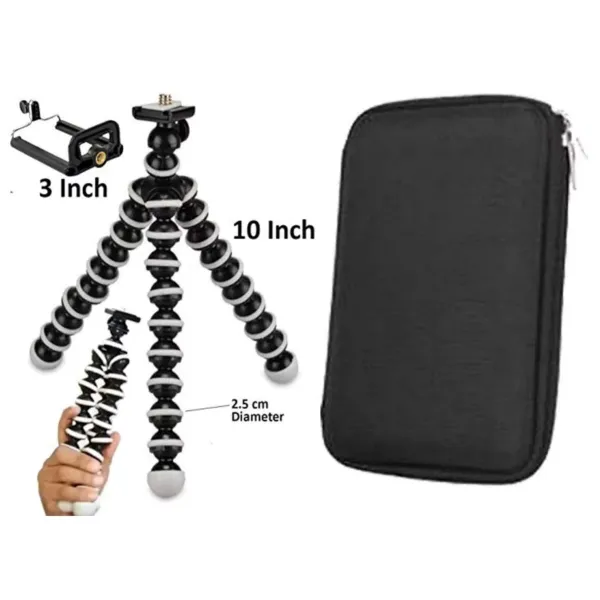
JIKRA Gorilla Tripod for Mobile & DSLR Camera – 10 inch Flexible Mini Tripod with Organiser Bag
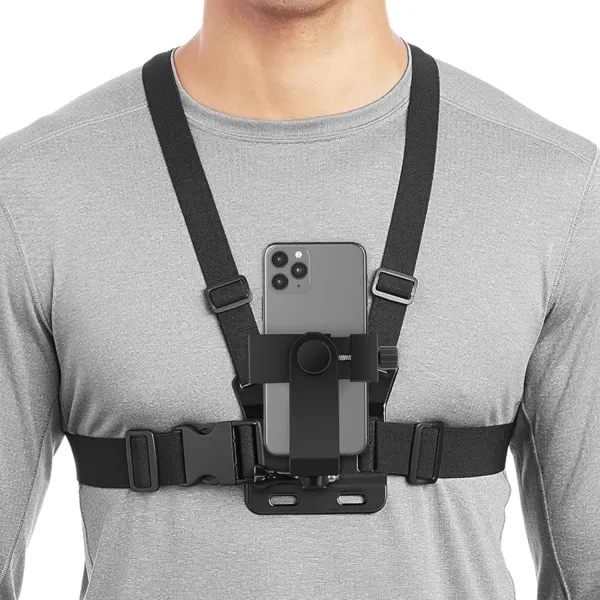
JIKRA Chest Mount for Mobile – Adjustable Chest Strap Harness with Phone Holder Clip